Chisel AI: What It Is and How It Works
Published · Updated
Quick answer
Chisel AI edits gym photos with Shoulders and Waist sliders for a V-taper and Abs/Muscle sliders for torso fullness. Six-pack and muscle definition come from the optional AI Transform, which sends the photo to a cloud provider and asks first.
Key takeaways
- Shoulders and Waist sliders build the V-taper; Abs and Muscle add gentle mid-torso fullness only.
- Six-pack and arm definition come only from the optional cloud AI Transform, which asks first.
- Every slider shows a natural limit in green so edits still look like you.
- All manual editing tools are free; AI Transform includes a limited number of free uses.
- Chisel runs on Android now, with iPhone coming soon, and needs no account.
Chisel AI is a photo editor built for men's gym and physique photos. Its Shoulders and Waist sliders build a V-taper, and its optional AI Transform adds six-pack and muscle definition — both stay within a natural limit so the result still looks like you.
What does Chisel AI actually do?
Chisel takes a gym or physique photo and lets you adjust how the physique reads in the image itself. The Shoulders and Waist sliders build a V-taper — Shoulders widens the body at shoulder height, Waist slims it at the waist — and the Abs and Muscle sliders both add the same gentle fullness to the middle of the torso. For six-pack definition, or added chest, shoulder and arm definition, the optional AI Transform sends the photo to a cloud AI provider, asks first, and includes a limited number of free uses.
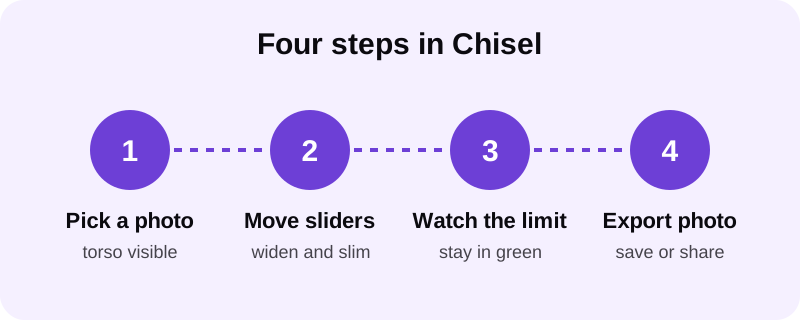
None of this changes your actual body — Chisel is not a diet, fitness or health app. It edits the photo, not the person. Pose detection automatically finds your torso in the photo, so there's no manual masking before you start. That focus keeps the tool list short: Shoulders, Waist, Abs, Muscle and Height, plus a Smooth filter that evens out the whole photo rather than retouching any one feature.
How does Chisel keep edits looking natural, not fake?
Every slider in Chisel — Shoulders, Waist, Abs, Muscle, Height — shows a natural limit marked in green. You can push a slider past that point, but staying inside the green zone is what keeps an edit reading as a real build instead of an obviously inflated one.
Match the edit to the photo's lighting and apparent build. A heavily widened V-taper on a softly lit photo is the fastest way to make an edit look pasted on — small, proportional moves read better than one big push on a single slider. The habit that causes most bad edits isn't the app, it's overuse. The guides on adding a six-pack to a photo and adding muscle to a photo that looks real both cover this in more detail — proportion matters more than intensity.
Chisel also writes an AI-altered label into the edited photo's metadata when AI Transform is used. That disclosure is built into the file itself, not something you have to remember to add separately — and edits you're upfront about tend to hold up better than ones you try to hide.
Does Chisel AI upload my photos anywhere?
It depends on which tool you use. Chisel's manual sliders — Shoulders, Waist, Abs, Muscle and Height — run on your phone. The optional AI Transform feature works differently: it sends your photo to a third-party cloud AI provider to generate six-pack and muscle definition, and it asks for your permission before doing that.
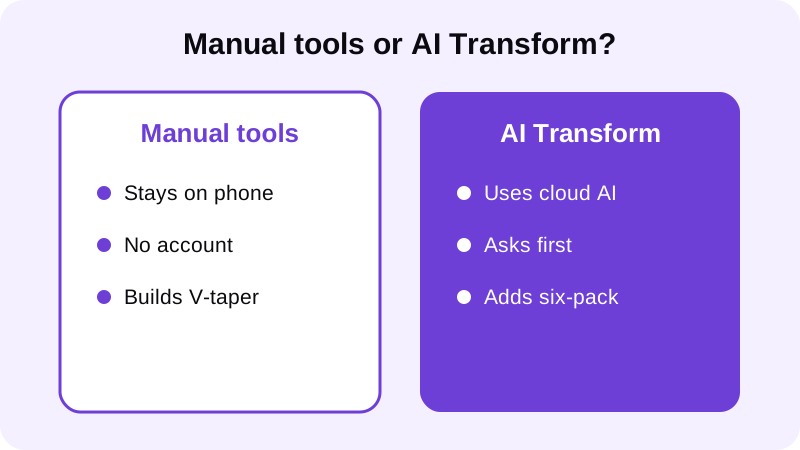
If you'd rather keep everything local, stick to the manual sliders — they cover the V-taper and torso fullness described above without the extra step. AI Transform always asks before it sends anything, and if you decline, every manual slider in the app still works.
What can you actually adjust in Chisel?
The slider list is short by design:
- Shoulders — widens the body at shoulder height to build a V-taper.
- Waist — slims the waist so the torso reads proportionally.
- Abs and Muscle — both add the same gentle fullness to the middle of the torso; neither draws ab lines or muscle definition.
- Height — stretches the whole photo vertically from its centre and trims the top and bottom edges.
- Smooth — evens out the whole photo; it's not a feature-by-feature retouch.
For six-pack abs, or added chest, shoulder and arm definition, that comes from the optional AI Transform rather than a slider. For face and jaw, Chisel has no edits — if you want a sharper-looking jawline in a photo, that comes down to camera angle, chin position and lighting rather than a slider. The guide on getting a sharper jawline in photos walks through posing and light placement that work with any camera.
For a full breakdown of combining the Shoulders, Waist, Abs and Muscle sliders without the result looking pasted together, the guide on using a body editor for men's gym photos walks through an order of operations that tends to work well.
What kind of photo should you start with?
Chisel works best on a photo where the torso is visible — a shirtless photo or a fitted top both work. Even lighting helps too, since harsh shadows make it harder for pose detection to map the torso cleanly.
If a shot doesn't give pose detection enough to work with — torso blocked by a jacket, or lit from one hard side — try a second photo rather than pushing a slider further to compensate. Front-on or slightly angled gym photos tend to give the cleanest results, and the guide on taking a good shirtless photo covers pose and lighting for that first shot. A clean source photo makes every downstream edit easier to keep inside the green zone.
What do you get after editing?
Chisel exports the edited photo in HD. If your original photo is larger than 2048 pixels on the long side, it's scaled down to that size when you import it, so starting with a sharp, well-lit shot still matters.
Don't judge an edit zoomed in at full screen width. Check how it looks at the size it'll actually be viewed — a thumbnail in a feed — before deciding a slider needs to go further. There's also an animated before/after reveal export built for sharing, plus one-tap presets, templates and collage layouts including side-by-side, three-photo and picture-in-picture. The reveal is a sharing feature, not a promise about what any particular photo will look like — it's a format for presenting the edit you already made.
Is Chisel AI free?
Every editing tool in Chisel is free to use, including the Shoulders, Waist, Abs, Muscle and Height sliders. AI Transform includes a limited number of free uses on top of that. Chisel Pro removes ads and the watermark and unlocks Pro templates, and comes with a 3-day free trial so you can try it before deciding. If you'd rather not subscribe, Chisel also offers a one-time Lifetime purchase as an alternative to Pro.
What devices does Chisel AI run on?
Chisel is available now on Android through Google Play; the iPhone version is coming soon. The app requires no account, and it's made for adults.
Who is Chisel AI actually for?
Chisel is designed for men's physique photos specifically, not as a general beauty filter. It's built for the kind of photo you already take at the gym or at home — the Shoulders and Waist sliders, the Abs and Muscle fullness, and the optional AI Transform all work on a photo you've already got, not a redesign of what you look like day to day.
FAQ
Does Chisel AI add a six-pack to my photo automatically?
Not with a slider. The Abs and Muscle sliders only add a gentle fullness to the middle of the torso. Six-pack and muscle definition come from the optional AI Transform, which sends the photo to a cloud AI provider, asks first, and includes a limited number of free uses.
What's the difference between the Abs slider and the Muscle slider?
Nothing in effect — both apply the same gentle fullness to the middle of the torso rather than drawing ab lines or separate muscle shape. For visible six-pack or arm definition, use the optional AI Transform instead.
Does Chisel edit my face or jawline?
No. Chisel has no jawline, eye, teeth or beard edits — its sliders work on the body only: Shoulders, Waist, Abs, Muscle and Height. For a sharper-looking jaw, camera angle and lighting do the work, not an editing tool.
Is Chisel AI free to use?
Every editing tool in Chisel is free, including every slider. AI Transform includes a limited number of free uses. Chisel Pro removes ads and the watermark and unlocks Pro templates, with a 3-day free trial, and a one-time Lifetime purchase is also available.
What photo should I use with Chisel AI?
Pick one where your torso is visible — shirtless or a fitted top both work — with even lighting. Pose detection finds your torso automatically, so a front-on or slightly angled gym photo tends to give the cleanest result.