How to Widen Shoulders in a Photo (Naturally)
Published · Updated
Quick answer
To widen shoulders in a photo, fix your stance, camera height and lighting first, then use Chisel's Shoulders and Waist sliders together, stopping at the green natural limit so the V-taper still matches your real frame.
Key takeaways
- Fix pose, camera angle and lighting first — they do most of the work for free
- Chisel's Shoulders and Waist sliders build the V-taper; they add no muscle definition
- Slim the waist slightly before widening shoulders — the ratio matters more than width alone
- Every slider has a green natural limit so results still look like your real frame
- Six-pack and muscle definition come only from the optional AI Transform, not the sliders
Here's how to widen shoulders in a photo without it looking edited: fix your pose and camera angle first, then use a slider with a built-in natural limit so the added width still matches your frame. Get both right and nobody can tell the photo was touched.
Why do shoulders look narrow in most gym photos?
Camera angle does most of the damage. A phone held at chest height and shot straight-on compresses the width of your shoulders relative to your height, and arms pinned tight to your sides blur the line between shoulder and arm instead of letting it stand apart.
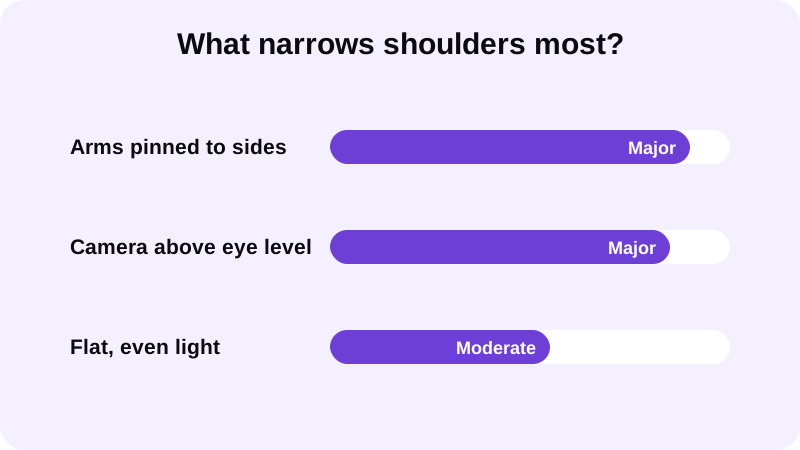
Lighting plays a part too. Flat, even light removes the shadow that normally separates the deltoid from the chest and the arm. Without that shadow, your shoulders read as one flat plane instead of a rounded shape with depth, and the same goes for strong backlighting that washes out that edge entirely.
How do you widen shoulders in a photo before you edit anything?
Pose and angle do most of the work, and they're free. Fix these three things before you open an editor at all.
- Open your stance. Stand close to square to the camera, then lift your arms a few inches away from your torso. That gap creates visible negative space between arm and waist, which reads as a broader shoulder line — the classic V-taper silhouette.
- Shoot slightly below eye level. A camera placed a little lower than your eyeline keeps your shoulders the widest point in frame instead of your head. Shooting from above flattens shoulder width and exaggerates the waist instead, which works against the effect you want.
- Use side lighting, not flat light. A light source off to one side carves a shadow under the deltoid and along the collarbone, which is what makes shoulders look wide and rounded rather than just present. The guide on best lighting for gym progress photos covers angles that work well for a mirror or tripod shot.
Take the photo a few inches further back than feels natural, too. A camera too close to the body distorts proportions and can narrow the shoulders relative to the rest of the frame, especially in a tight mirror selfie.
How do you widen shoulders in a photo using an editor?
Posing and lighting get you most of the way there. For the rest, Chisel's Shoulders and Waist sliders build the V-taper directly on the photo, with pose detection that finds your torso automatically — no manual masking needed, on a shirtless photo or one in a fitted top.
Start with the waist, not the shoulders
A wider-looking V-taper comes from the ratio between shoulders and waist, not from shoulder width alone. Slimming the waist slightly with the Waist slider before touching the Shoulders slider does more for the overall silhouette than pushing shoulder width up on its own.
Widen at shoulder height, then stop at the limit
Move the Shoulders slider up in small increments. It widens the body at shoulder height only, so small, steady moves keep the result looking structural rather than stretched. Chisel marks a natural limit in green on every slider — stop there, and the added width still casts shadows and proportions consistent with the rest of the photo.
Leave muscle definition to AI Transform
The Shoulders and Waist sliders change shape, not texture — they don't add six-pack lines or muscle definition, since both just adjust where the silhouette sits. If you want visible shoulder, chest or arm definition on top of the wider silhouette, that comes from the optional AI Transform, which asks first, sends the photo to a cloud AI provider, and includes a limited number of free uses. The guide on how to add muscle to a photo that looks real walks through combining the two.
Check the collarbone line
Zoom in on where the shoulder meets the neck. If the edit pushed the deltoid line out but left the collarbone and neck width untouched, that mismatch is usually the first thing a viewer notices.
Export the result
Chisel exports in HD. Photos larger than 2048 pixels on the long side are scaled down when you import them. If you're posting it for comparison, Chisel can also export an animated before/after reveal — a sharing format, not a claim about what changed in real life, just a way to show the edit itself. The piece on how to hide belly fat in photos walks through the waist-slimming step in more detail.
What mistakes make a shoulder edit obvious?
Most shoulder edits fail for the same handful of reasons, and they're all easy to check for before you export.
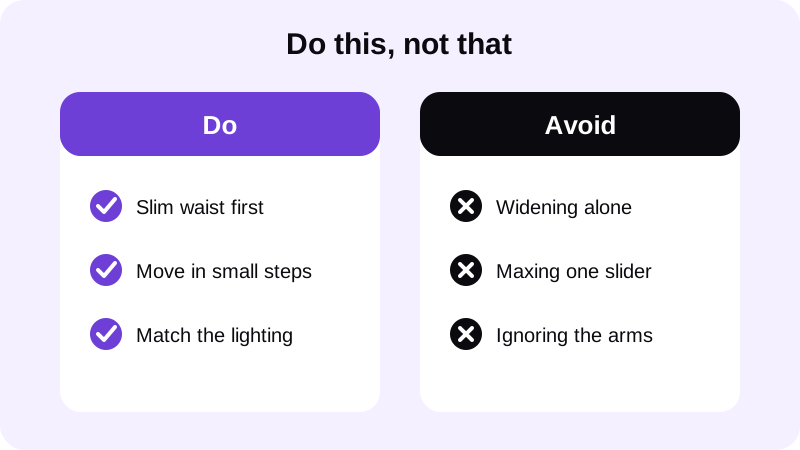
Widening shoulders without slimming the waist is the most common error — the V-taper is a ratio, and changing one side of it makes the proportions look off almost immediately. Ignoring the arms is the second: a shoulder line that widens past the arm's own width creates a visible step where the two should blend smoothly. The third is a lighting mismatch — if the original photo has light coming from one side, the added width needs a shadow on the same side to look consistent, or the edit reads as pasted on top of the original.
Don't crop in tight on the shoulders after editing to hide a soft collarbone transition, either. If you need to crop that closely to make the edit convincing, it's usually a sign to scale the slider back instead.
Does a wider-shoulder edit work on every photo?
It works best when your torso is clearly visible and the camera is close to straight-on. A photo shot from a sharp angle, or one where your arms are crossed in front of your chest, gives the editor less to work with and limits how natural the result looks, whether it's a mirror selfie or a tripod shot in the gym.
Chisel is built specifically for men's physique photos, not as a general beauty filter. The manual sliders, including Shoulders and Waist, run on your phone; the optional AI Transform sends the photo to a third-party cloud AI provider to generate its result, and it asks first before doing so. Chisel writes an AI-altered label into an edited photo's metadata to disclose that. Every editing tool in Chisel, including the Shoulders and Waist sliders, is free to use — Chisel Pro removes ads and the watermark and unlocks Pro templates, and it includes a 3-day free trial, with a one-time Lifetime purchase available as an alternative. Chisel is available on Android from Google Play, with an iPhone version coming soon, and it requires no account to use.
Where else can you learn to edit a gym photo naturally?
- Body editor for men: how to edit gym photos without looking fake
- How to add muscle to a photo that looks real
FAQ
Does Chisel's Shoulders slider add muscle or definition?
No. The Shoulders slider only widens the body at shoulder height to build the V-taper, and the Waist slider slims the waist to match it. Neither adds muscle shape or six-pack lines — that definition comes only from the optional AI Transform.
Can I widen my shoulders in a photo without using an editor?
Pose, camera height and lighting go a long way on their own. An open stance with arms lifted slightly away from the torso, a camera placed a bit below eye level, and side lighting all make shoulders read as wider in the original photo.
What's the most common mistake when widening shoulders in an edit?
Widening the shoulders without slimming the waist to match. The V-taper is a ratio between the two, so pushing shoulder width up alone makes the proportions look off even if the shoulder edit itself was subtle.
Is there a limit to how wide Chisel lets you make the shoulders?
Yes. Every slider in Chisel, including Shoulders and Waist, marks a natural limit in green based on the photo. Staying within it keeps the width, shadows and proportions consistent with the rest of your frame.
Does a wider-shoulder edit work on any gym photo?
It works best on a photo shot close to straight-on with your torso clearly visible. Sharp angles, crossed arms, or a torso partly hidden behind equipment give the editor less to work with and make the result harder to keep natural.