How to Make Your Body Look Leaner in Photos
Published · Updated
Quick answer
Knowing how to make your body look leaner in photos starts before editing: fix camera angle, light direction and pose first. Then use Chisel's Waist and Shoulders sliders — each capped at a green natural limit — to refine the shot without it looking altered.
Key takeaways
- Camera angle, light direction and pose shape a leaner photo more than editing does.
- Turn slightly, raise the camera a little, and use side light instead of flat light.
- Chisel's Waist and Shoulders sliders build a V-taper, each capped at a green natural limit.
- Abs and Muscle sliders add gentle torso fullness only; six-pack and muscle definition come from AI Transform.
- Keep the edit whole: match shoulders to a slimmed waist and preserve the original lighting and skin texture.
If you want to know how to make your body look leaner in photos, the real gains come before you open an editor: camera angle, light direction and a tighter pose. Editing then refines what the camera already captured.
What actually makes a photo look leaner?
Three things do almost all the work: the angle you shoot from, where the light falls, and how tight your pose is through the midsection. A photo taken straight-on under flat, overhead light will always look wider and softer than the same body shot at a slight angle with light coming from the side.
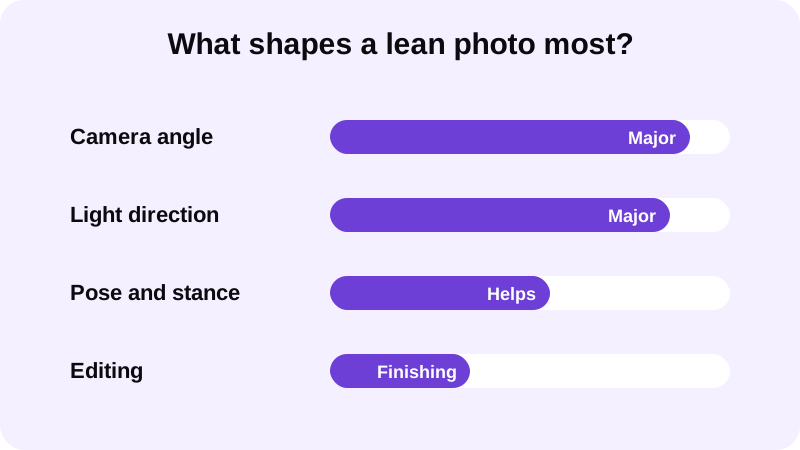
Editing comes after that. It can refine what's already there, but it can't invent a waistline or a shadow the original photo never captured — there's nothing for a slider to work with if the shot itself is flat and square-on.
How do you pose and shoot to look leaner?
Get these right before you open any editor, and you'll need far less editing afterward.
- Turn slightly instead of facing the camera dead-on. A quarter turn narrows your silhouette and shows more shape along the side and waist than a square-on shot ever will.
- Raise the camera a few inches above eye level. Shooting from slightly above elongates the torso in frame; shooting from below compresses and widens everything.
- Engage your core and roll your shoulders back. A slouched stance rounds the stomach forward, and standing tall pulls everything in and up.
- Control where the light comes from. Side light or light from slightly above creates shadow definition along the waist and obliques that flat, front-facing light erases.
- Choose a fitted top or go shirtless. Either gives the camera, and any editing tool afterward, a clean read on your torso.
- Shoot a few frames at slightly different angles before you settle on one. A half-step turn can change how the waist reads more than any slider will.
For more on light direction specifically, see Best Lighting for Gym Progress Photos. For setup and framing, see How to Take a Good Shirtless Photo. Posture matters beyond this list too — see How to Fix Posture in a Photo (Pose, Angle, Edit) if slouching is the bigger issue, and How to Take a Full Body Photo That Looks Sharp if you're framing the whole body rather than a close crop.
What can editing add once the photo is taken?
Once you have a well-angled, well-lit shot, editing can refine what the camera already captured. Chisel is built specifically for men's gym and physique photos — not a general filter and not a diet or fitness app — and its manual editing tools run on your phone.
For a leaner look, the Waist slider does the most work: it slims the midsection within a green natural limit, which is often the single biggest factor in whether a photo reads as lean at a glance. The Shoulders slider widens the body at shoulder height, and together the two build a V-taper — broader at the top, tighter at the waist — without either one needing to move past its limit to still look like you.
Chisel's Abs and Muscle sliders don't draw ab lines or sharpen muscle shape; both apply the same gentle fullness to the middle of the torso. Visible six-pack lines, or added definition through the chest, shoulders and arms, come from the optional AI Transform instead, which asks first, sends the photo to a third-party cloud AI provider, and includes a limited number of free uses. See How to add a six-pack to a photo (without looking fake) and How to add muscle to a photo that looks real for how that works.
If your main concern is the stomach specifically rather than the whole physique, How to Hide Belly Fat in Photos (Naturally) goes deeper on that one adjustment.
How do you keep a leaner edit from looking fake?
Edit the whole torso, not just the waist. A slimmed waist next to shoulders that haven't moved looks off immediately, and that's something no single slider can fix on its own.
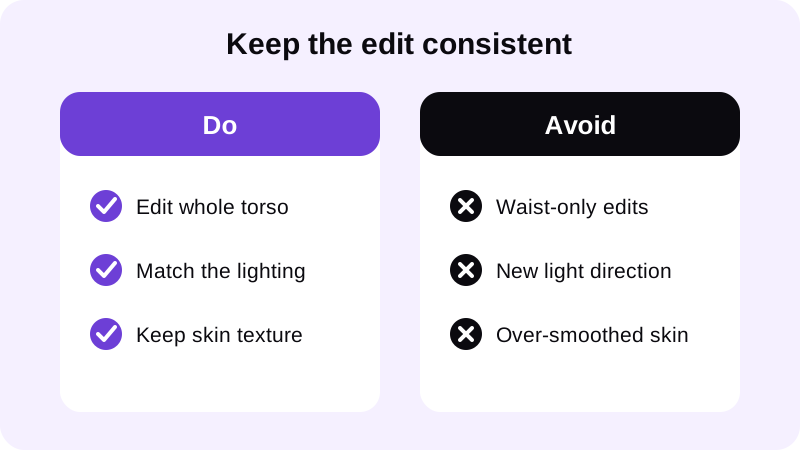
Chisel's pose detection maps your torso automatically, with no manual masking needed, so a waist adjustment stays proportional to the shoulders instead of one slider doing all the work.
Don't strip the lighting you shot with. If the original photo has shadow falling one direction, an edit that adds shape in a different direction will look pasted on.
Leave skin texture alone, or close to it. Chisel's Smooth filter smooths the whole photo evenly — it isn't a face or skin retouch — so use it lightly, if at all, on a photo where you've also slimmed the waist.
Chisel writes an AI-altered label into a photo's metadata whenever AI Transform is used. That's a disclosure feature, not a cosmetic one — it keeps the edit on record even if nobody asks.
What else should you adjust besides the waist?
A lean physique photo usually isn't just about the stomach. A wider frame at the shoulders against a slimmer waist is a big part of why the whole photo reads as lean rather than just thin.
Chisel's Shoulders and Waist sliders build that V-taper together, each stopping at its own green limit so the proportions stay believable. See How to Widen Shoulders in a Photo (Naturally) for more on that slider on its own, and How to Look More Muscular in Photos for how pose, angle and lighting work alongside it.
Where should you start?
Start with the shot, not the edit. Get the angle, light and pose right first using the steps above, then open Chisel, let pose detection find your torso, and move the Waist and Shoulders sliders a little at a time, checking the green limit as you go.
Chisel Pro removes ads and the watermark and unlocks Pro templates, and includes a 3-day free trial if you want to test it before committing; Chisel also offers a one-time Lifetime purchase as an alternative to the subscription. Every slider described here, including Waist and Shoulders, is free to use either way. Chisel runs on Android now, with an iPhone version coming soon, and doesn't require an account to get started.
Export the result in HD, or save the animated before/after reveal if you want to share how the edit compares to the original shot. For a broader look at editing a gym photo without it looking fake, see Body editor for men: how to edit gym photos without looking fake.
FAQ
Does editing alone make a gym photo look leaner?
Not on its own. Camera angle, light direction and your pose decide most of how lean a photo reads; editing can only refine shape that's already visible in the shot. Start with a slight turn, side light and an engaged core, then use a tool like Chisel to finish the result.
Which Chisel slider slims the waist in a photo?
The Waist slider slims the midsection within a green natural limit. Paired with the Shoulders slider, which widens the body at shoulder height, it builds a V-taper that makes the whole physique read as leaner, not just the stomach.
Can a slider add a six-pack or muscle definition?
No. Chisel's Abs and Muscle sliders both add the same gentle fullness to the middle of the torso rather than drawing ab lines. Visible six-pack or muscle definition comes from the optional AI Transform, which asks first and uses a cloud AI provider with a limited number of free uses.
How do you stop an edited photo from looking fake?
Edit the waist and shoulders together rather than just one, match the lighting you shot with, and leave skin texture mostly alone. Staying inside each slider's green natural limit, instead of pushing to its edge, is what keeps a leaner edit looking like you.
Does Chisel edit the face to make someone look leaner?
No. Chisel has no jawline, eye, teeth or beard edits — its sliders work on the body, covering abs and muscle fullness, the waist and the shoulders. Its Smooth filter smooths the whole photo evenly, which isn't a face or skin retouch.